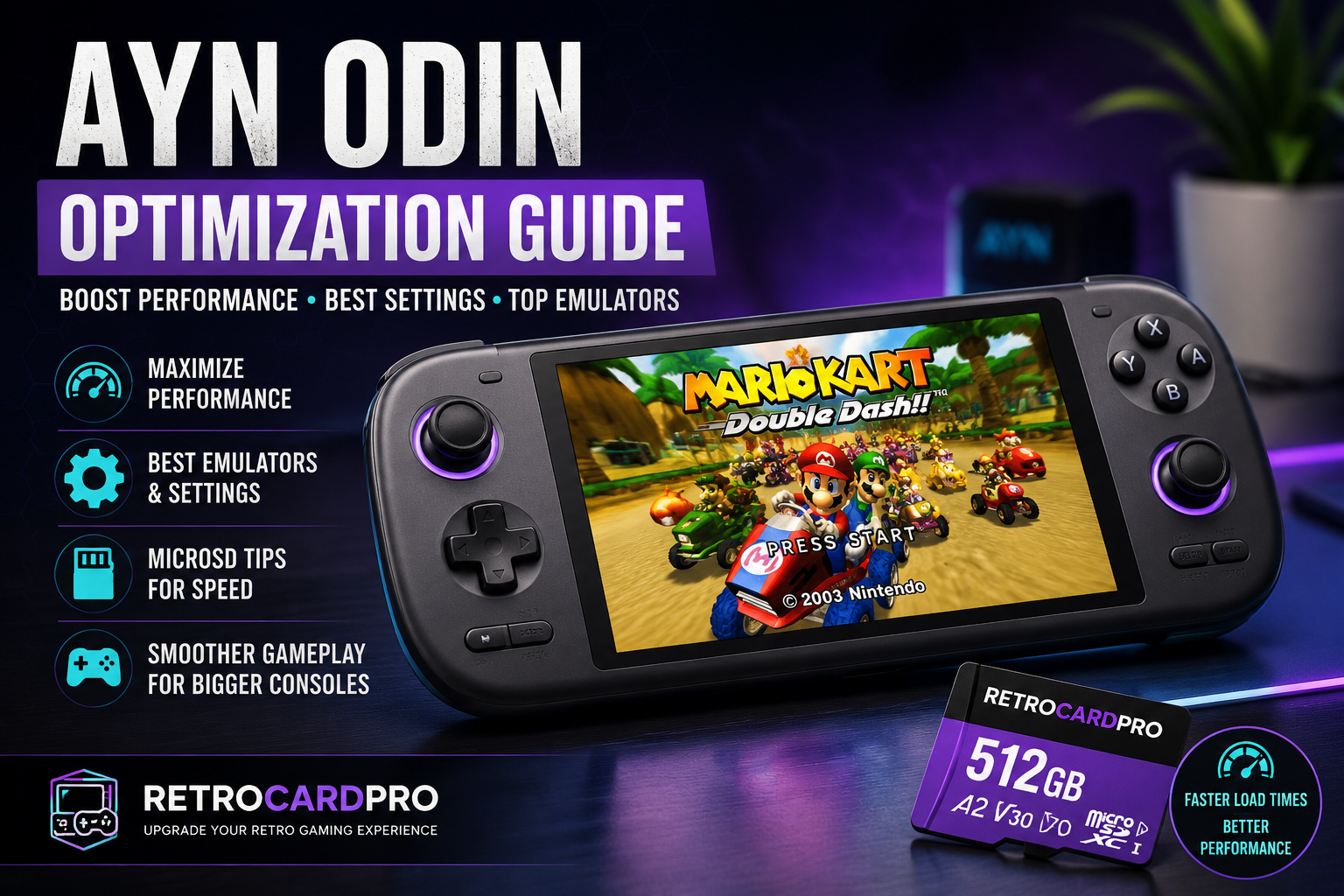
AYN Odin Optimization Guide: Boost Gaming Performance

# How to Optimize Your AYN Odin for the Best Gaming Performance The AYN Odin is one of the most powerful Android handheld gaming consoles available for retro gaming enthusiasts. Whether you're emulating classic Nintendo, Sega, PlayStation, or even GameCube and PlayStation 2 titles, the Odin offers an impressive balance of performance, portability, and battery life. However, getting the best experience requires more than simply installing your favorite emulators. In this guide, you'll learn how to optimize your AYN Odin for smoother gameplay, faster loading times, and improved overall performance. --- ## 1. Keep Your System Updated Before making any performance tweaks, make sure your AYN Odin is running the latest firmware. System updates often include Performance improvements Bug fixes Better emulator compatibility Enhanced battery optimization Security updates You should also keep your emulators updated through the Google Play Store or their official websites. --- ## 2. Use a High-Speed microSD Card A fast microSD card significantly improves loading times and overall system responsiveness. For the best experience, choose a card with the following specifications UHS-I A2 Application Performance Class V30 or higher A slow memory card can lead to Longer game loading times Slower ROM browsing Reduced performance when loading large textures Delays when launching games For users looking for a plug-and-play solution, RetroCardPro offers pre-configured microSD cards specifically prepared for the AYN Odin, allowing you to start playing immediately without complicated setup. --- ## 3. Install the Best Emulators Choosing the right emulator makes a noticeable difference in performance. Recommended emulators include ### Nintendo GameCube & Wii Dolphin MMJR Dolphin Emulator ### PlayStation 2 NetherSX2 ### Nintendo 3DS Lime3DS ### PSP PPSSPP ### Dreamcast Flycast ### Nintendo DS melonDS ### PlayStation (PS1) DuckStation Each emulator receives frequent updates that improve compatibility and speed. --- ## 4. Optimize Graphics Settings Increasing the internal resolution improves image quality but also requires more processing power. Recommended settings ### GameCube & Wii Backend Vulkan Internal Resolution 2x or 3x Disable V-Sync if extra performance is needed ### PlayStation 2 Vulkan Renderer 2x Internal Resolution Basic Blending Accuracy ### PSP 3x or 4x Rendering Resolution Keep Frame Skip disabled These settings provide an excellent balance between visual quality and stable frame rates. --- ## 5. Enable Performance Mode The AYN Odin includes different power profiles. For demanding systems such as PlayStation 2 GameCube Wii Enable Performance Mode to maximize CPU and GPU performance. For older consoles like NES, SNES, Genesis, or Game Boy, Standard Mode is sufficient and helps preserve battery life. --- ## 6. Use a Frontend A frontend creates a polished, console-like experience. Popular options include ES-DE Daijisho Beacon Launcher Benefits include Automatic game organization Box art downloads Quick game launching Clean user interface Better overall navigation --- ## 7. Manage Your Storage Avoid filling your microSD card completely. Keeping at least 10–15% of the storage free helps maintain fast read and write speeds. Organize ROMs into clearly labeled folders by console for easier frontend scanning. --- ## 8. Close Background Applications Running unnecessary applications in the background consumes RAM and CPU resources. For maximum emulator performance Close unused apps Disable unnecessary background services Restart your device occasionally before long gaming sessions This frees additional system resources for demanding emulators. --- ## 9. Recommended Settings by Console Console Difficulty Recommended Settings ------------- ---------- -------------------- NES Very Easy Default settings SNES Very Easy 4x Resolution Sega Genesis Very Easy Default PlayStation Easy DuckStation 4x Dreamcast Easy Flycast Vulkan PSP Easy PPSSPP 3x GameCube Medium Dolphin Vulkan 2x Wii Medium Dolphin Vulkan 2x PlayStation 2 Medium NetherSX2 2x Nintendo 3DS Demanding Lime3DS 1x–2x --- ## Final Thoughts The AYN Odin is one of the best Android handheld consoles for retro gaming. With the right emulators, optimized graphics settings, a high-speed microSD card, and proper system configuration, you can enjoy smooth gameplay across thousands of classic titles. If you'd rather skip the setup process, RetroCardPro offers ready-to-use microSD cards designed specifically for the AYN Odin. Each card is carefully configured with optimized emulators, organized game libraries, and a plug-and-play experience, allowing you to spend less time configuring and more time gaming.

How to Optimize Your AYN Odin for the Best Gaming Performance

The AYN Odin is one of the most powerful Android handheld gaming consoles available for retro gaming enthusiasts. Whether you’re emulating classic Nintendo, Sega, PlayStation, or even GameCube and PlayStation 2 titles, the Odin offers an impressive balance of performance, portability, and battery life.

However, getting the best experience requires more than simply installing your favorite emulators. In this guide, you’ll learn how to optimize your AYN Odin for smoother gameplay, faster loading times, and improved overall performance.

1. Keep Your System Updated

Before making any performance tweaks, make sure your AYN Odin is running the latest firmware.

System updates often include:

  • Performance improvements
  • Bug fixes
  • Better emulator compatibility
  • Enhanced battery optimization
  • Security updates

You should also keep your emulators updated through the Google Play Store or their official websites.

2. Use a High-Speed microSD Card

A fast microSD card significantly improves loading times and overall system responsiveness.

For the best experience, choose a card with the following specifications:

  • UHS-I
  • A2 Application Performance Class
  • V30 or higher

A slow memory card can lead to:

  • Longer game loading times
  • Slower ROM browsing
  • Reduced performance when loading large textures
  • Delays when launching games

For users looking for a plug-and-play solution, RetroCardPro offers pre-configured microSD cards specifically prepared for the AYN Odin, allowing you to start playing immediately without complicated setup.

3. Install the Best Emulators

Choosing the right emulator makes a noticeable difference in performance.

Recommended emulators include:

Nintendo GameCube & Wii

  • Dolphin MMJR
  • Dolphin Emulator

PlayStation 2

  • NetherSX2

Nintendo 3DS

  • Lime3DS

PSP

  • PPSSPP

Dreamcast

  • Flycast

Nintendo DS

  • melonDS

PlayStation (PS1)

  • DuckStation

Each emulator receives frequent updates that improve compatibility and speed.

4. Optimize Graphics Settings

Increasing the internal resolution improves image quality but also requires more processing power.

Recommended settings:

GameCube & Wii

  • Backend: Vulkan
  • Internal Resolution: 2x or 3x
  • Disable V-Sync if extra performance is needed

PlayStation 2

  • Vulkan Renderer
  • 2x Internal Resolution
  • Basic Blending Accuracy

PSP

  • 3x or 4x Rendering Resolution
  • Keep Frame Skip disabled

These settings provide an excellent balance between visual quality and stable frame rates.

5. Enable Performance Mode

The AYN Odin includes different power profiles.

For demanding systems such as:

  • PlayStation 2
  • GameCube
  • Wii

Enable Performance Mode to maximize CPU and GPU performance.

For older consoles like NES, SNES, Genesis, or Game Boy, Standard Mode is sufficient and helps preserve battery life.

6. Use a Frontend

A frontend creates a polished, console-like experience.

Popular options include:

  • ES-DE
  • Daijisho
  • Beacon Launcher

Benefits include:

  • Automatic game organization
  • Box art downloads
  • Quick game launching
  • Clean user interface
  • Better overall navigation

7. Manage Your Storage

Avoid filling your microSD card completely.

Keeping at least 10–15% of the storage free helps maintain fast read and write speeds.

Organize ROMs into clearly labeled folders by console for easier frontend scanning.

8. Close Background Applications

Running unnecessary applications in the background consumes RAM and CPU resources.

For maximum emulator performance:

  • Close unused apps
  • Disable unnecessary background services
  • Restart your device occasionally before long gaming sessions

This frees additional system resources for demanding emulators.

9. Recommended Settings by Console

ConsoleDifficultyRecommended Settings
NESVery EasyDefault settings
SNESVery Easy4x Resolution
Sega GenesisVery EasyDefault
PlayStationEasyDuckStation 4x
DreamcastEasyFlycast Vulkan
PSPEasyPPSSPP 3x
GameCubeMediumDolphin Vulkan 2x
WiiMediumDolphin Vulkan 2x
PlayStation 2MediumNetherSX2 2x
Nintendo 3DSDemandingLime3DS 1x–2x

Final Thoughts

The AYN Odin is one of the best Android handheld consoles for retro gaming. With the right emulators, optimized graphics settings, a high-speed microSD card, and proper system configuration, you can enjoy smooth gameplay across thousands of classic titles.

If you’d rather skip the setup process, RetroCardPro offers ready-to-use microSD cards designed specifically for the AYN Odin. Each card is carefully configured with optimized emulators, organized game libraries, and a plug-and-play experience, allowing you to spend less time configuring and more time gaming.
Leave a Reply

Your email address will not be published. Required fields are marked *