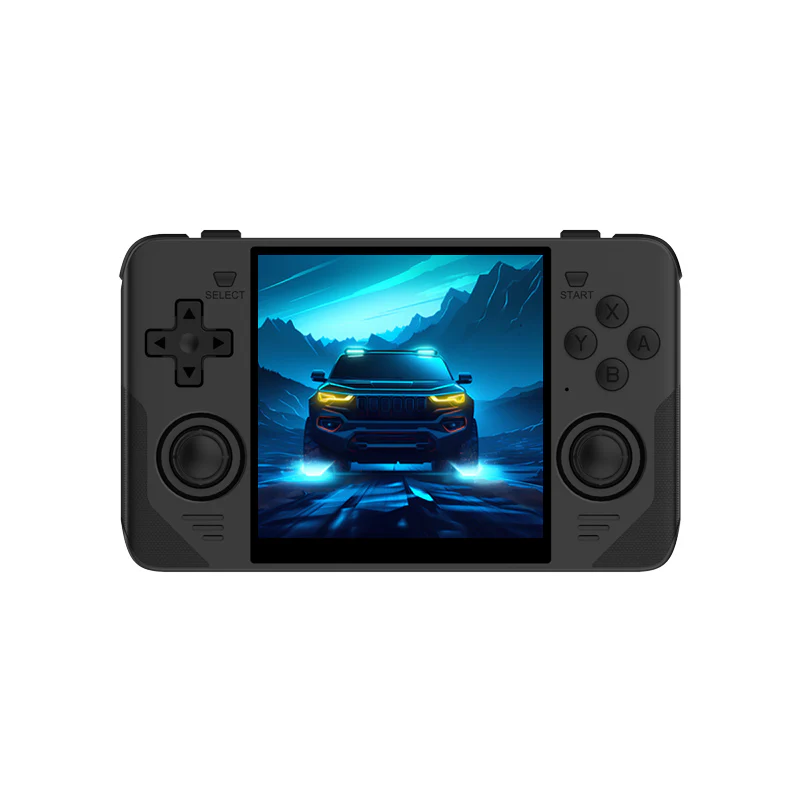
The Powkiddy RGB30 is a unique square-screen handheld loved for its 1:1 display ratio, making retro games look pixel-perfect. To get the best performance possible, you need to adjust the right settings, use optimal emulator configurations, and understand how different cores respond to the hardware.
This guide provides the best settings for each major system.
Want a plug-and-play SD card optimized for the Powkiddy RGB30? We offer fully configured cards with clean folders, optimized cores, and pre-built layouts.
Best Global Settings
Choose the Right OS
Recommended OS options:
Stock OS
MinUI
JelOS
Knulli
Best overall:JelOS or MinUI for speed and stability.
Optimal RetroArch Settings
Video Settings
Video driver: Vulkan (if available)
Integer scaling: ON (perfect square pixels)
Interpolation: OFF
Bilinear filtering: OFF
Audio Settings
Latency: 64ms
Audio driver: SDL
Threaded audio: ON
Best Settings by System
NES / SNES / GB / GBC
Use:
NES core: FCEUMM
SNES core: Snes9x
GB/GBC: Gambatte
Optimal settings:
Internal Resolution: Native
Frame Delay: 2
Hard GPU Sync: ON
GBA
Use mGBA core:
Interframe blending: OFF
Frame skip: OFF
Internal res: Native
PS1
Use PCSX-ReARMed:
Renderer: Enhanced
Frameskip: OFF
Audio Sync: ON
Arcade (FBNeo/MAME)
VSync: ON
Hard GPU sync: ON
Preload ROM: ON
Troubleshooting Performance Issues
Stutter or Lag
Close background apps
Disable shaders
Lower audio latency
Incorrect Aspect Ratio
RGB30 uses a square display — always use:
Integer scaling
Correct core aspect
Final Recommendations
Use JelOS for the best compatibility
Keep your SD card organized
Back up saves regularly
Prefer Vulkan over OpenGL when possible
CTA
Want a plug-and-play SD card optimized for the Powkiddy RGB30? We offer fully configured cards with clean folders, optimized cores, and pre-built layouts.