Odin 2 Android Setup Tutorial – Full Guide for Emulation (2026 Edition)
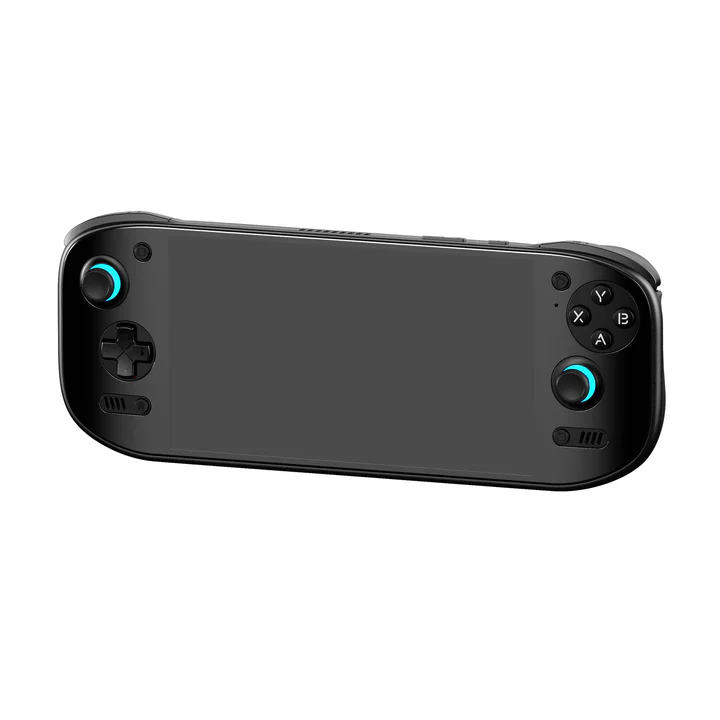
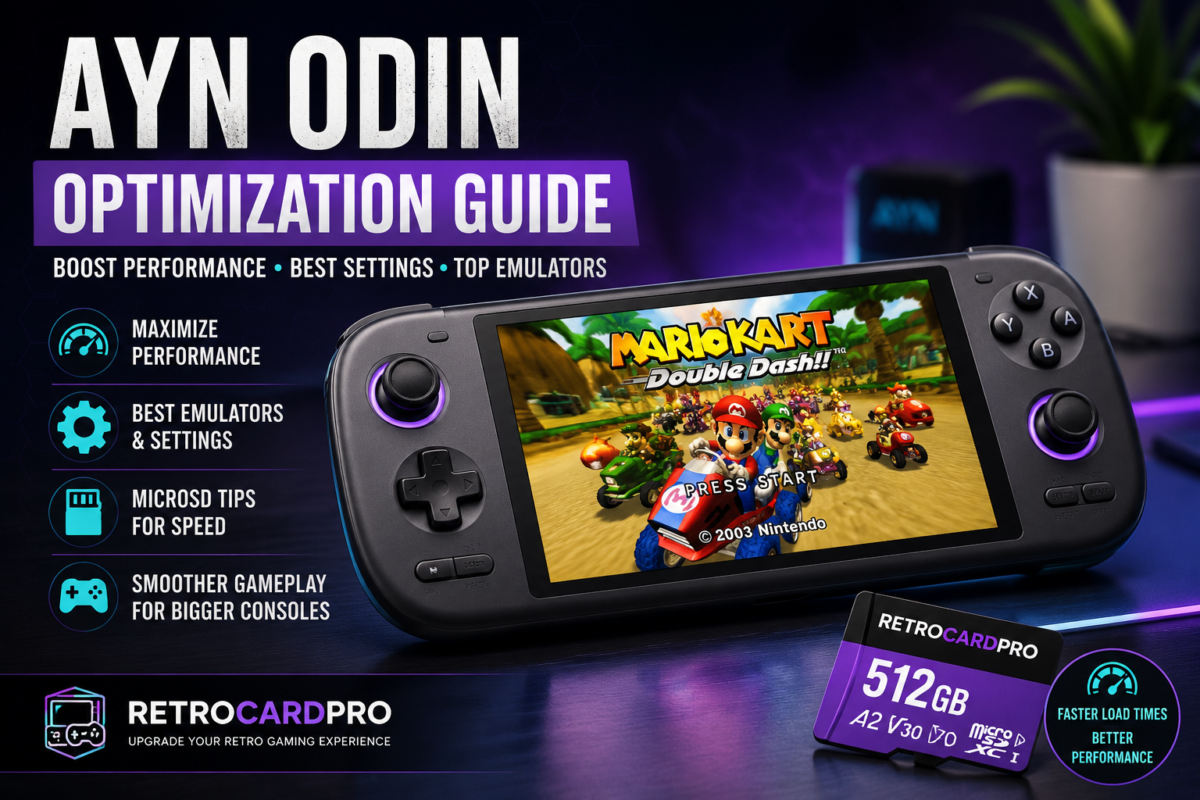
The Ayn Odin 2 is one of the most powerful Android handhelds ever released, capable of running everything from classic retro systems to GameCube, PS2, Wii, and even some Nintendo Switch titles. Whether you’re a beginner or transitioning from the original Odin or Odin Lite, this guide will walk you through the complete setup process.
We will cover system preparation, emulator installation, BIOS setup, best settings, frontend configuration, and performance optimization.
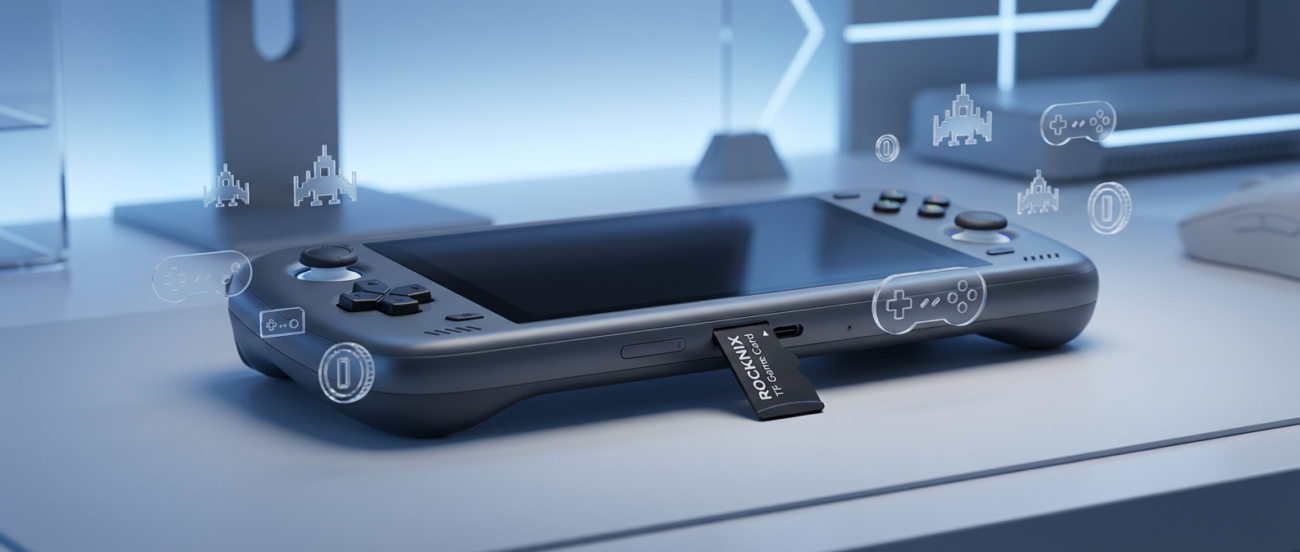
Want a ready-to-play SD card for Odin 2 with organized setups and optimized folders?
Check out our premium Odin-compatible game cards.
First-Time Device Setup
Initial Configuration
When powering on the Odin 2 for the first time:
- Select language
- Connect to WiFi
- Sign into Google account
- Update Google Play services
- Apply system updates
Before installing anything, go to Settings → About → System Update and install any available firmware updates to avoid compatibility issues later.
Essential Apps for Emulation
Here are the core apps every Odin 2 user should install:
Key Emulators
- RetroArch (multi-system emulation)
- DuckStation (PlayStation 1)
- PPSSPP (PSP)
- AetherSX2 or PCSX2 Android builds (PS2)
- Dolphin MMJR or Dolphin Android (GameCube & Wii)
- Citra Enhanced (Nintendo 3DS)
- Yuzu Android (unofficial) – Switch (experimental)
- EggNS (with controllers) – Switch (optional)
Recommended Utility Apps
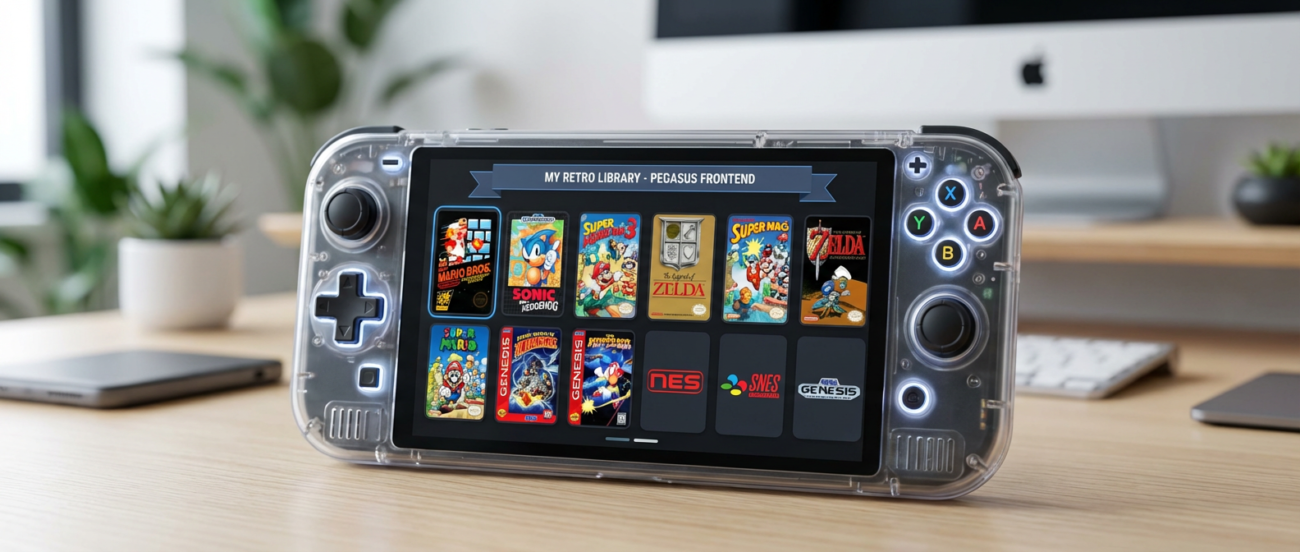
- Daijisho or Pegasus (frontend)
- File Manager+
- ZArchiver
- SD Maid
- Taskbar (for desktop-style multitasking)
Preparing the SD Card
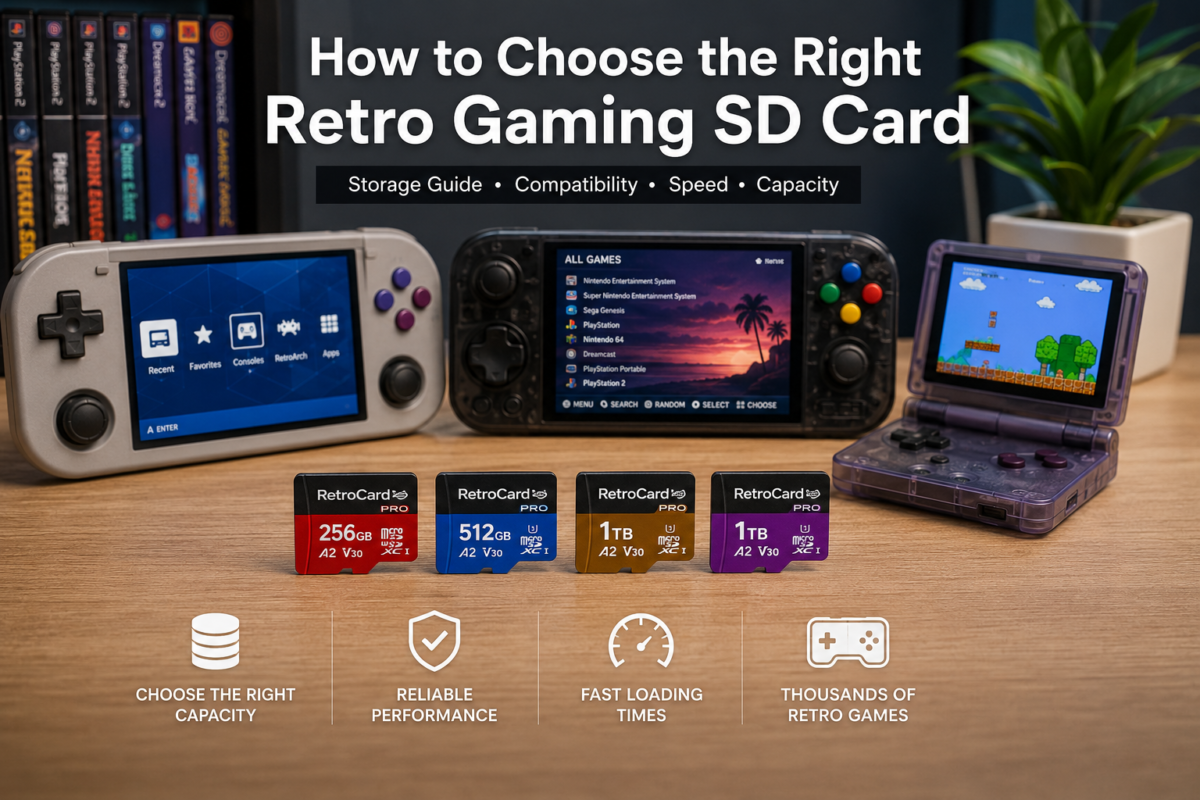
Choosing the Right Card
- Minimum 256GB recommended
- A2-rated microSD preferred
- Format as exFAT (Android-friendly)
Want a ready-to-play SD card for Odin 2 with organized setups and optimized folders?
Check out our premium Odin-compatible game cards.
Ideal Folder Structure
Keep your files organized:
/Roms/PS1
/Roms/PS2
/Roms/GameCube
/Roms/Wii
/Roms/SNES
/Bios
/Emulators
Use short names and avoid special characters.
Emulator Setup – Best Settings for Each System
DuckStation (PS1) Best Settings
- Renderer: Vulkan
- Internal Resolution: 4×
- VSync: ON
- Widescreen Hack: Optional
- Texture Filtering: Bilinear
PPSSPP (PSP) Best Settings
- Rendering Mode: Vulkan
- Internal Resolution: 3×
- Lazy Texture Caching: On
- Hardware Transform: On
- Bicubic Filtering: On
Dolphin (GC/Wii) Best Settings
- Backend: Vulkan
- Internal Resolution: 2× or 3×
- VSync: On
- Scaled EFB Copy: On
- Skip EFB Access: On
AetherSX2 / PCSX2 Mobile (PS2)
- Renderer: Vulkan
- Multithreaded VU1: Enabled
- Upscaling: 2×
- Widescreen patches: On
Want a ready-to-play SD card for Odin 2 with organized setups and optimized folders?
Check out our premium Odin-compatible game cards.
Frontend Setup (Daijisho Recommended)
Why Use a Frontend?
- Clean UI
- Auto artwork scraping
- Auto-launch directly into games
- Custom collections for large libraries
Daijisho Setup Steps
- Install Daijisho
- Add each emulator
- Add game directories
- Generate artwork
- Customize theme
Troubleshooting
Slow Performance
- Close all background apps
- Reduce internal resolution
- Switch to Vulkan backend
Audio Crackling
- Increase audio latency
- Disable VSync
Want a ready-to-play SD card for Odin 2 with organized setups and optimized folders?
Check out our premium Odin-compatible game cards.